WordPress Connection
This guide explains the complete process of connecting your WordPress website to ReemPress and accessing the application from your phone.
About the WordPress Connection
When you click Connect to App inside WordPress, ReemPress creates a secure connection between your website and your ReemPress account.
This connection allows the ReemPress application to access authorized website features such as content management, media management, products, and updates.
The entire process usually takes only a few minutes.
1. Sign In to Your ReemPress Account
After clicking Connect to App inside WordPress, a secure ReemPress page will automatically open in your browser.
If you are not already signed in:
- Enter your email address
- Enter your password
- Click Sign In
To help protect your account, we strongly recommend using:
- A unique password
- At least 12 characters
- Uppercase and lowercase letters
- Numbers
- Special characters
Avoid reusing passwords that are already used on other websites or services.
2. Confirm the Website Connection
After signing in, you will automatically be redirected to the confirmation screen.
Before confirming:
- Verify the website name displayed in the hub
- Verify the domain name
- Make sure it is the website you want to connect
- Click Connect My Site
The connection is usually completed within a few seconds.
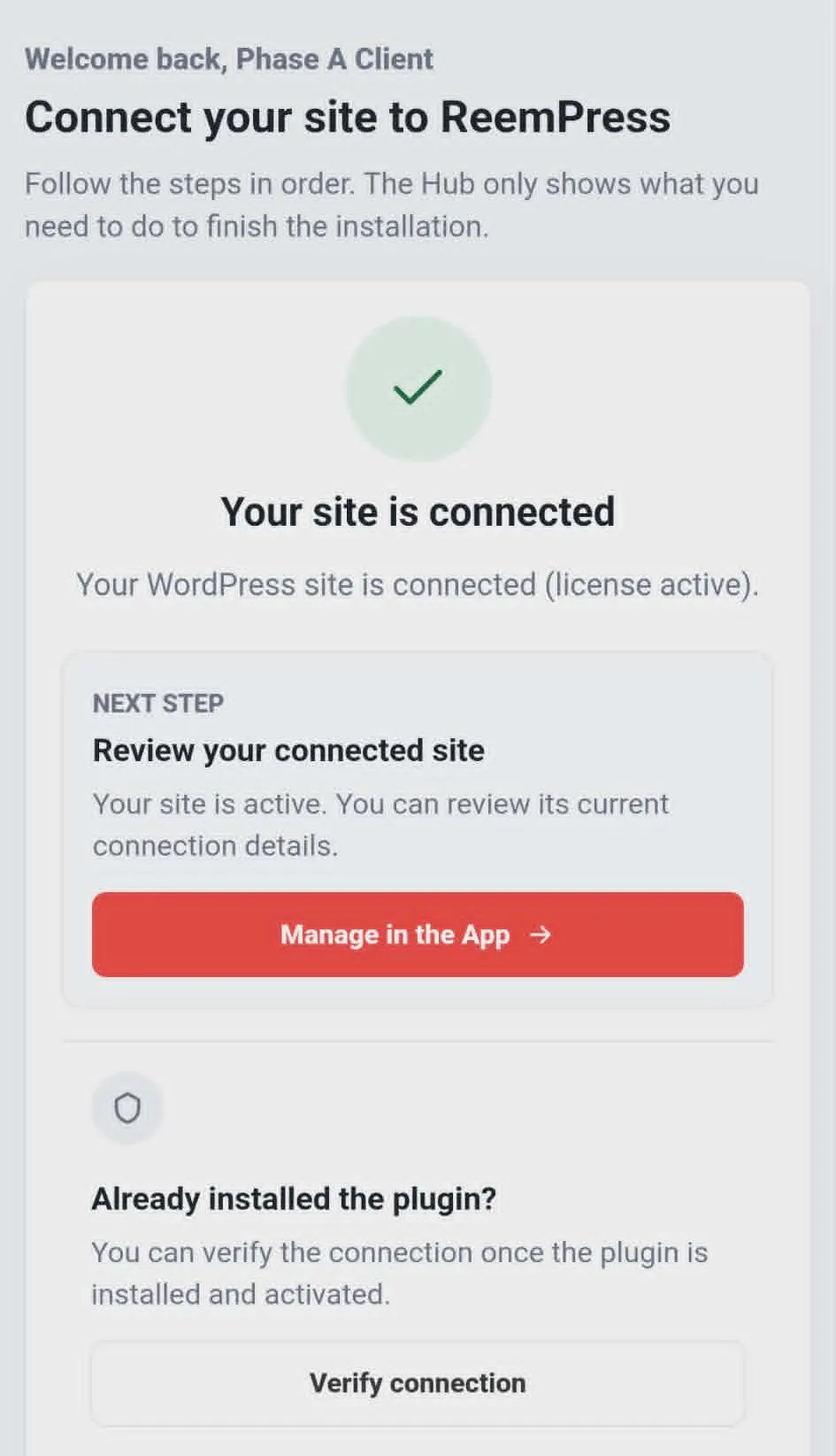
3. Verify That Your Website Is Connected
Once the connection is completed:
- Your website will appear in your ReemPress portal
- The website status will change to Connected
- ReemPress features will become available
You can now manage your website directly through ReemPress.
Access Your Website in the App
After connecting your website, open your ReemPress portal from your phone.
From your list of connected websites:
- Locate the website you want to manage
- Tap the Manage button
The ReemPress application will automatically open with your selected website ready to use.
Install the App on Your Phone
During your first visit from a mobile device, ReemPress may offer to install the application.
Installing the app adds a ReemPress icon directly to your phone's home screen for quick access.
Once installed:
- You can launch ReemPress directly from your home screen
- You can access your websites more quickly
- The experience is similar to a native mobile application

- You can launch ReemPress directly from your home screen
- You can access your websites more quickly
- The experience is similar to a native mobile application
Troubleshooting
If the connection does not work as expected, consult our complete troubleshooting guide.
Common situations include:
- Expired session
- Previously used connection request
- Temporary network issue
- Inactive or expired license
- Website inaccessible from the Internet
- Firewall or security plugin blocking the connection
In most cases, returning to WordPress and clicking Connect to App again resolves the issue.
Security
The connection between your WordPress website and ReemPress is protected throughout the entire process.
- Each connection request is temporary
- Manual confirmation is required
- No sensitive information is transmitted in URLs
- Communications are secured
- Access can be revoked at any time
Best Practices
- Keep your license key secure
- Use a strong password for your ReemPress account
- Do not share your account credentials
- Keep WordPress updated
- Keep your plugins updated
- Always use the Connect to App button inside WordPress
- Disconnect websites that are no longer in use
Once connected, your website is ready to use with all available ReemPress features.